
Once a Schedule has been added and the Floorplan has been drawn, you are able to start adding line items.
Estimate Mode
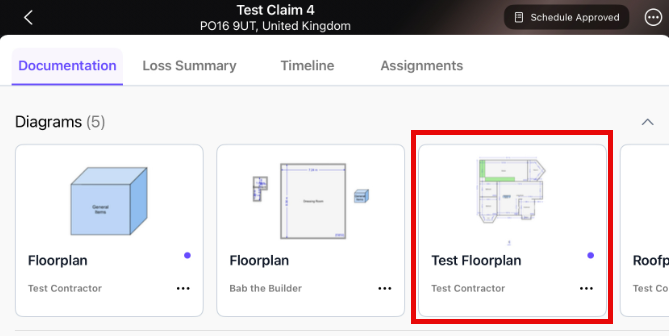
To locate Estimate Mode, open your diagram from the documentation page.
Once open, tap on the Estimate Mode icon from the tool list.
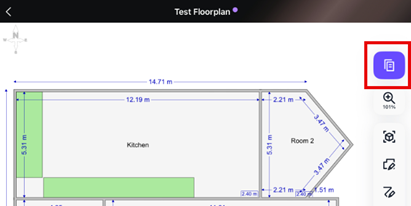
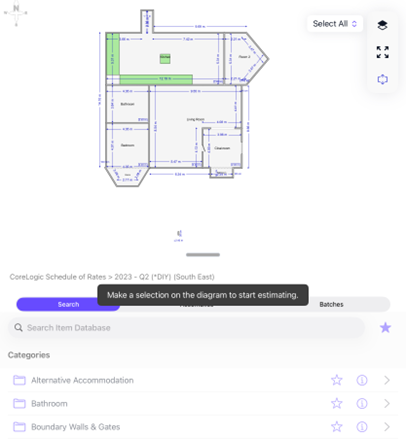
The Item Database will then appear at the bottom of the screen
Scoping
Selecting a Room
To begin creating your scope, you will first need to select a room to add your items to. A warning message will appear over the Item Database if a room is not selected, and all item categories will be greyed out.
Adding Line Items
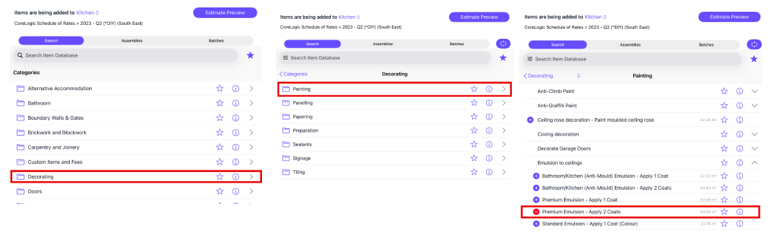
You can search for specific items using the Search Item Database bar.
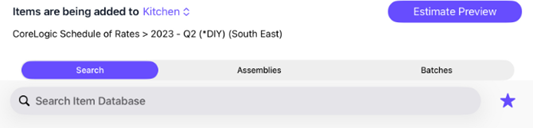
Alternatively, you can locate line items by taping the categories within the Item Database until you reach your desired line item. Once you have found your item with a cost associated, select the + icon next to it.
Assemblies
When using the Cotality Schedule of Rates, you are able to make use of the Ceilings and Interior Assemblies. These can easily be accessed via the Assemblies tab within the Item Database.
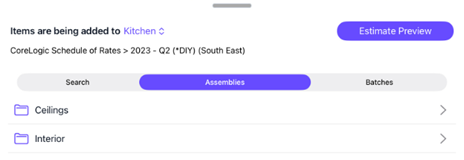
Select your desired Assembly to open the scoping questionnaire.
Batches
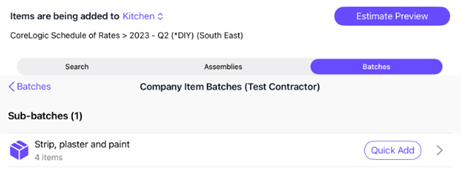
You are able to save a group of items that are often used in conjunction with other items. These “Batches” can be easily accessed via the Batches Tab in the Item Database.
Select a Batch to open your Sub-Batches and tap Quick Add to add the Item Batch to your schedule.
Viewing the Schedule
At any point whilst scoping you can preview your schedule by tapping Schedule Preview.
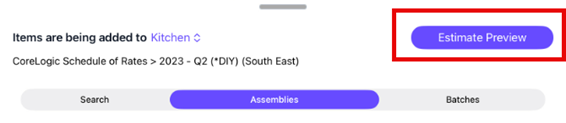
Within the Schedule Preview page, you can make changes to the items you have added. To do this, tap the Select button.
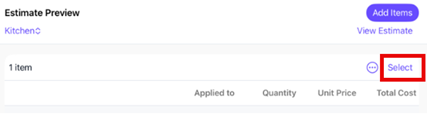
A tick option will then appear next to each line item.
Select an item followed by the ellipse icon in the top right of the Schedule Preview page. In the list that appears you will have the option to add titles, text, notes, depreciation, view the item properties and item components and finally, delete the line item.
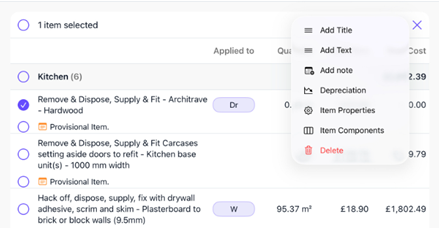
You can also view the item properties by tapping on the item. The Item Properties blade will then appear on the right-hand side of the page containing the details coverages and comments of that item. 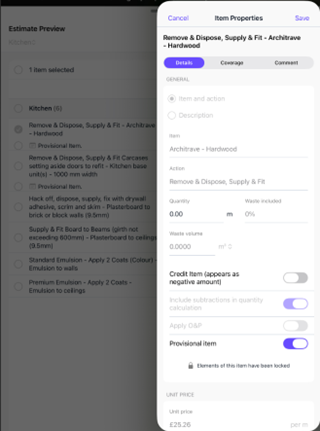
To stop editing, select the X in the top right-hand corner of the Estimate/Schedule Preview Page. 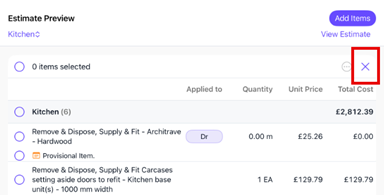
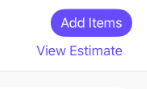
To return to the Item Database and continue scoping, tap Add Items. However, if you have finished your scoping and wish to view your finished schedule select, View Schedule.
Alternatively, you can go back to the documentation page and open your schedule from there.

Was this article helpful?
That’s Great!
Thank you for your feedback
Sorry! We couldn't be helpful
Thank you for your feedback
Feedback sent
We appreciate your effort and will try to fix the article