
Locating the Print Button
The print button can be found by selecting the ellipses icon in the top right-hand corner of the screen

In the drop down that appears, select Print.

Print to PDF
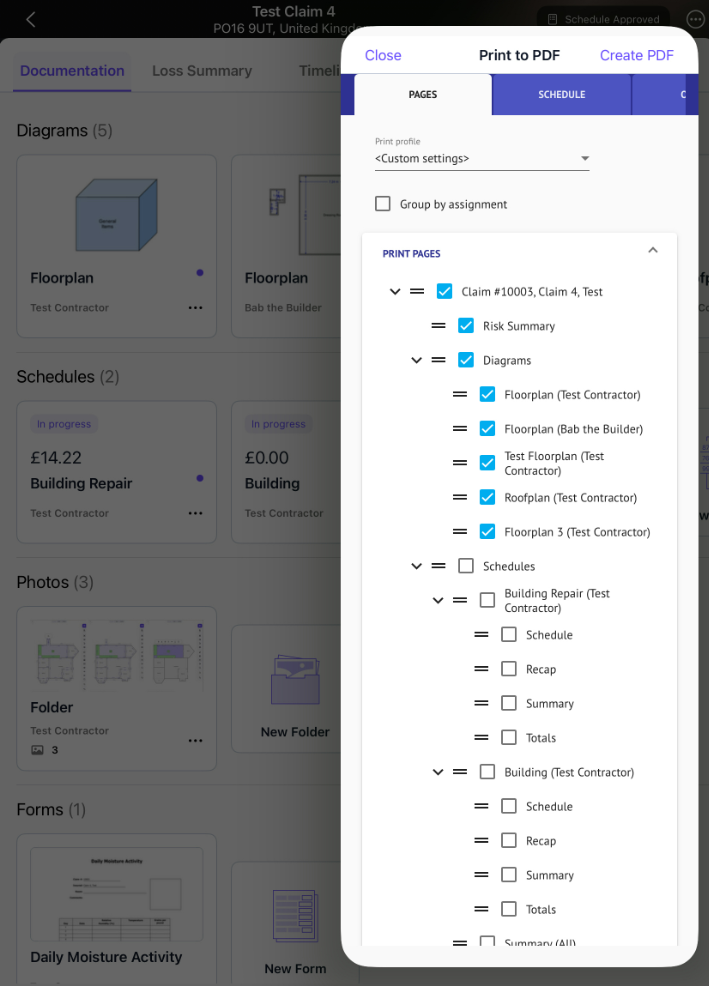
In the Print to PDF blade that appears you can choose to either select an existing print profile from the drop-down list or select what claim items you wish to print.
When not making use of a print profile; you require to indicate on each tab the required information you wish to print . Pages and sections can be reordered via drag and drop and pages can be grouped together based on their associated assignment.
Once you have completed this select Create PDF.
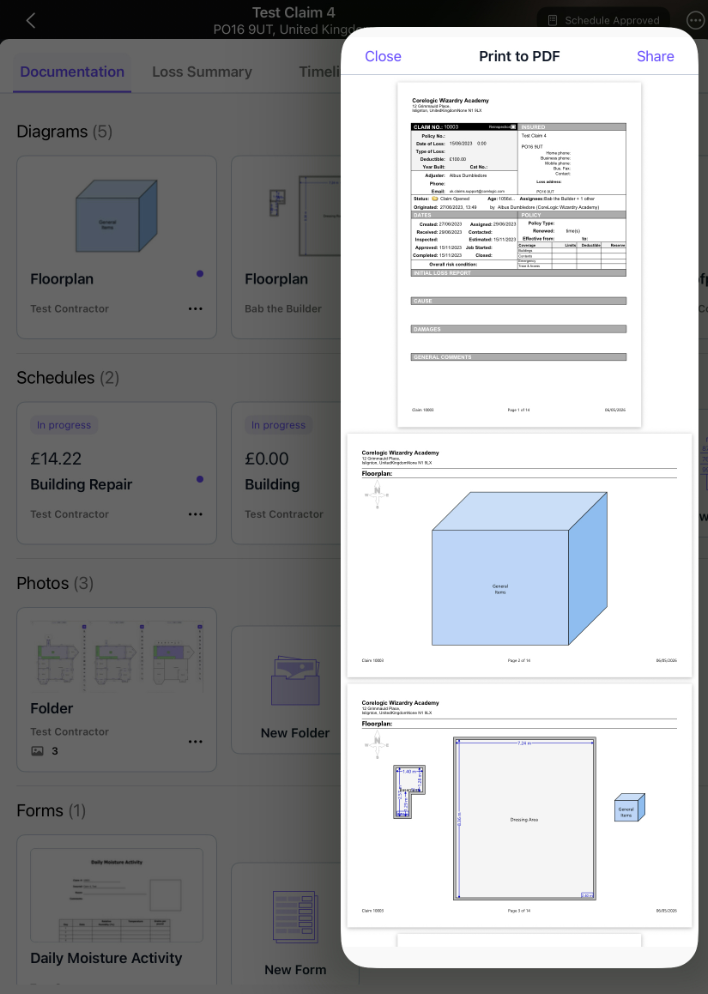
A PDF of your claim will them be generated within the blade. Select share to email the PDF or save to your device.

Was this article helpful?
That’s Great!
Thank you for your feedback
Sorry! We couldn't be helpful
Thank you for your feedback
Feedback sent
We appreciate your effort and will try to fix the article