
On the Schedule page you can view; the Schedule, Totals, Recap and Summary tabs.
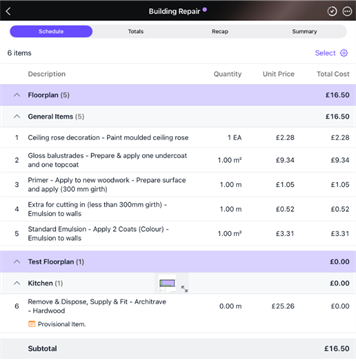
The Schedule Tab
Within the Schedules Tab you can edit the line items by tapping Select. A tick option will then appear next to each line item
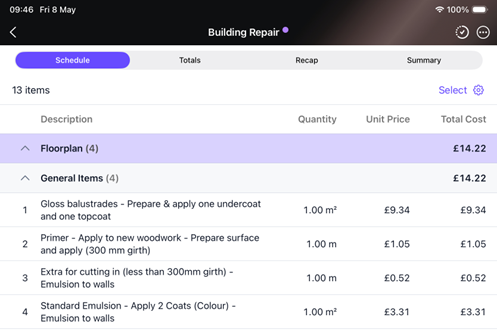
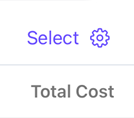
To open your schedules Table Settings, tap the cog icon in the top-right of the schedule.
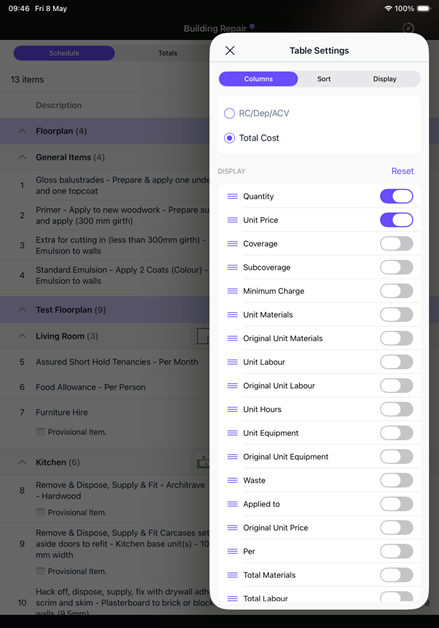
Within the Table Settings you will be able to amend the schedule columns, sort the schedule and amend the display options.
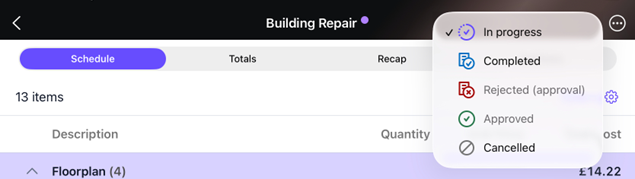
To change the schedule status, select the status symbol in the top right-hand corner of the screen. 
A drop-down list will appear where you can select the status you wish to change the schedule to.
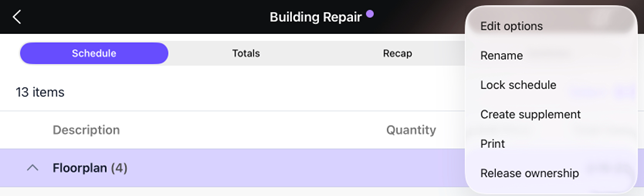
Selecting the ellipses icon in the top right-hand corner of the screen allow you to access more options.

Once selected a drop-down list will appear, here you can choose to edit or rename, you can also print or create a supplement to work from.
The Totals Tab
The Totals Tab contains a breakdown of all totals on the schedule including coverages and Policy excess if applicable.
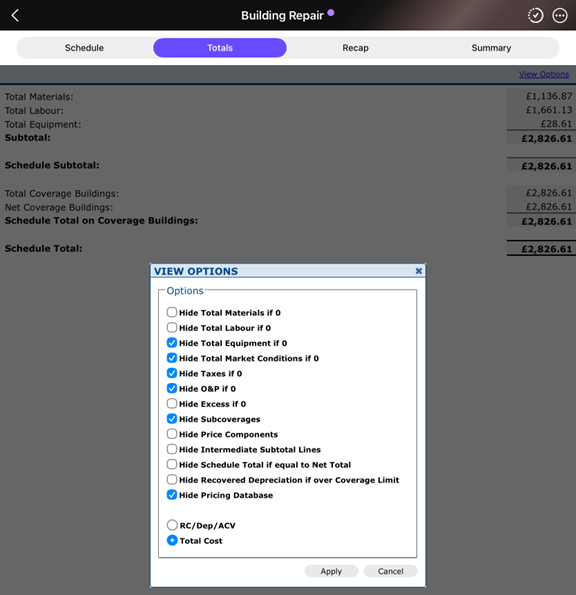
To view further options on the schedule totals page, select View Options.

A box will appear in the centre of the screen for you to tick on/off various options that will affect your view of the schedule’s totals.
The Recap Tab
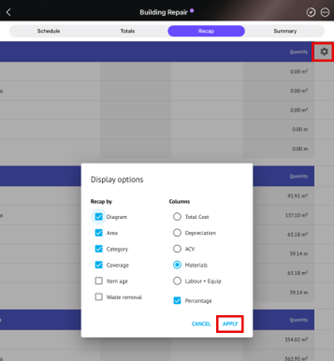
The recap tab allows you to group the various elements off the schedule for ease of visibility.
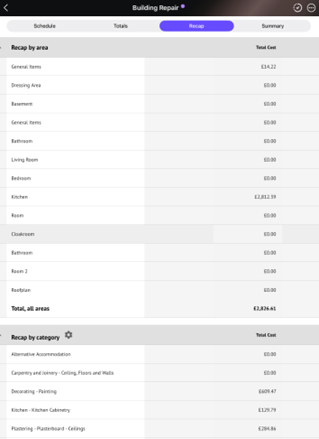
Within this tab you alter the display by dragging the screen and revealing the cog icon in the top right-hand corner of the screen. By tapping this icon, the Display Options box will appear in the centre of the screen. Here you can choose what you are recapping your schedule by and what columns you wish to include. Once you have selected your options, tap Apply
The Summary Tab
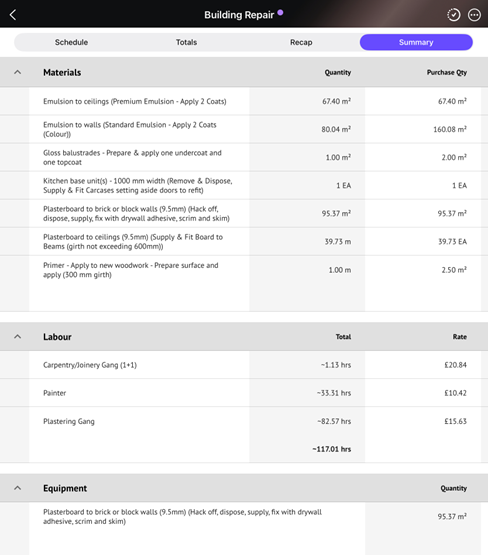
Within the Summary Tab, users can see their schedule broken down by Materials Labour and Equipment.

Was this article helpful?
That’s Great!
Thank you for your feedback
Sorry! We couldn't be helpful
Thank you for your feedback
Feedback sent
We appreciate your effort and will try to fix the article