
1. Participating in a Claim
To receive claim notifications and edit a claim, you will first need to participate in the claim.
All claims that you are participating in will be added to your My Claims list which is visible in Claims Estimate and in Claims Workspace.
1.1 Adding Yourself as a Participant from the Claims List
To add yourself as a participant from the claims list you will need to open All Active Claims or create a filtered list of all the claims you need using the Advanced Search feature.
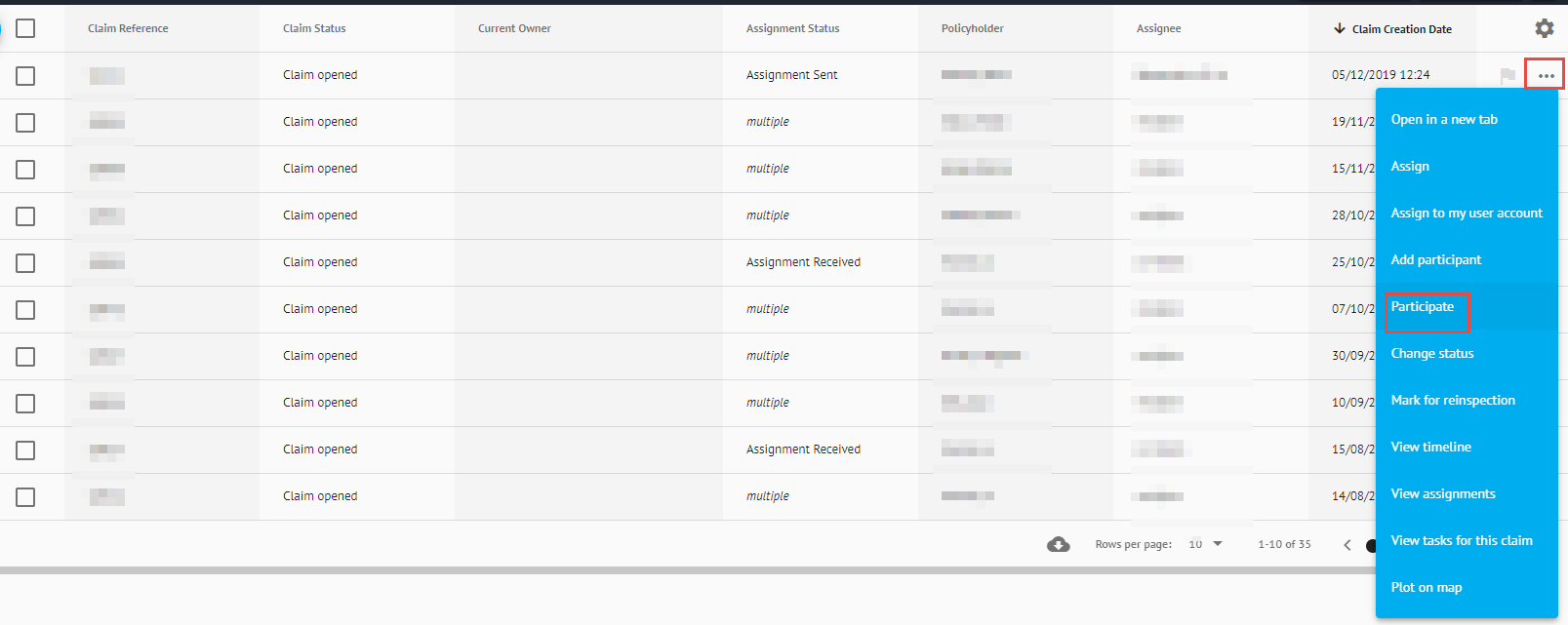
You will then need to click the three dots next to the claim and in the drop down that appears click Participate.
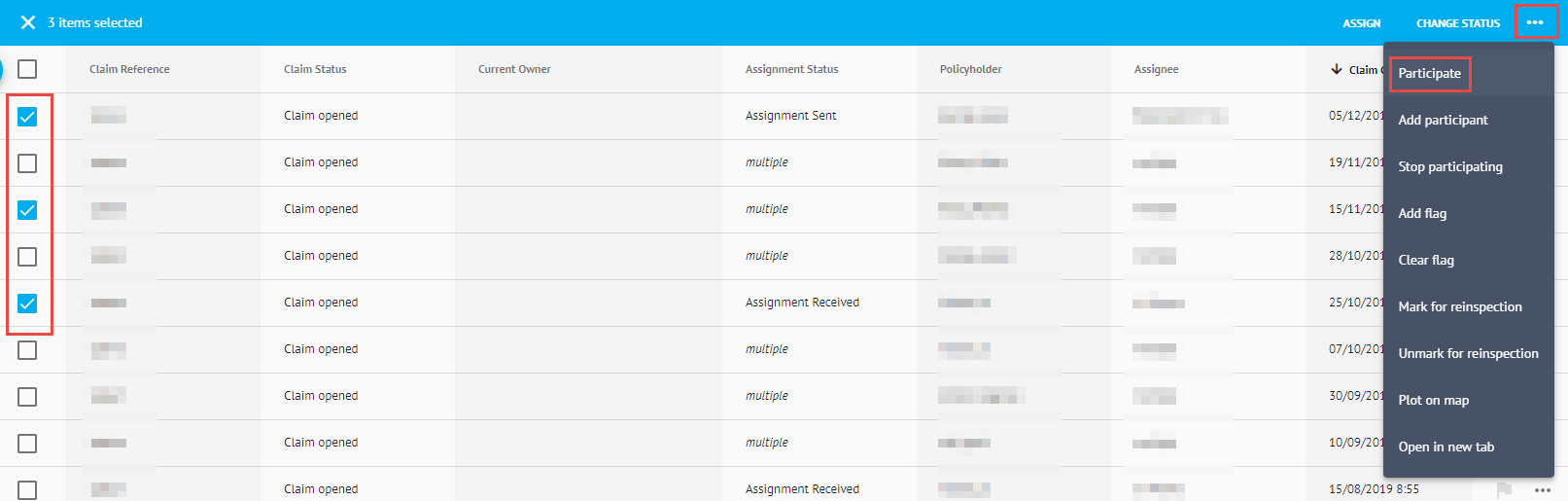
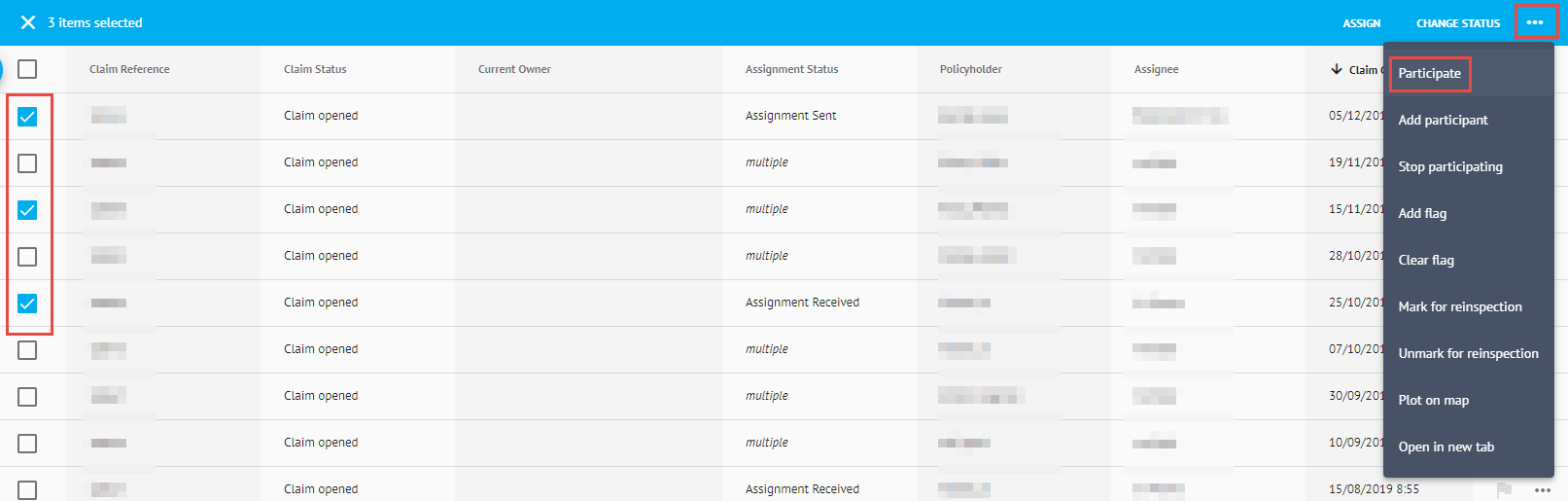
For multiple claims, tick the checkboxes next to the relevant claims. Then, click the three dots in the top right-hand corner of the claims list and in the drop down that appears click Participate.
1.2 Adding Another User as a Participant from the Claims List
To add another user as a participant from the claims list you will need to open All Active Claims or create a filtered list of all the claims you need using the Advanced Search feature.
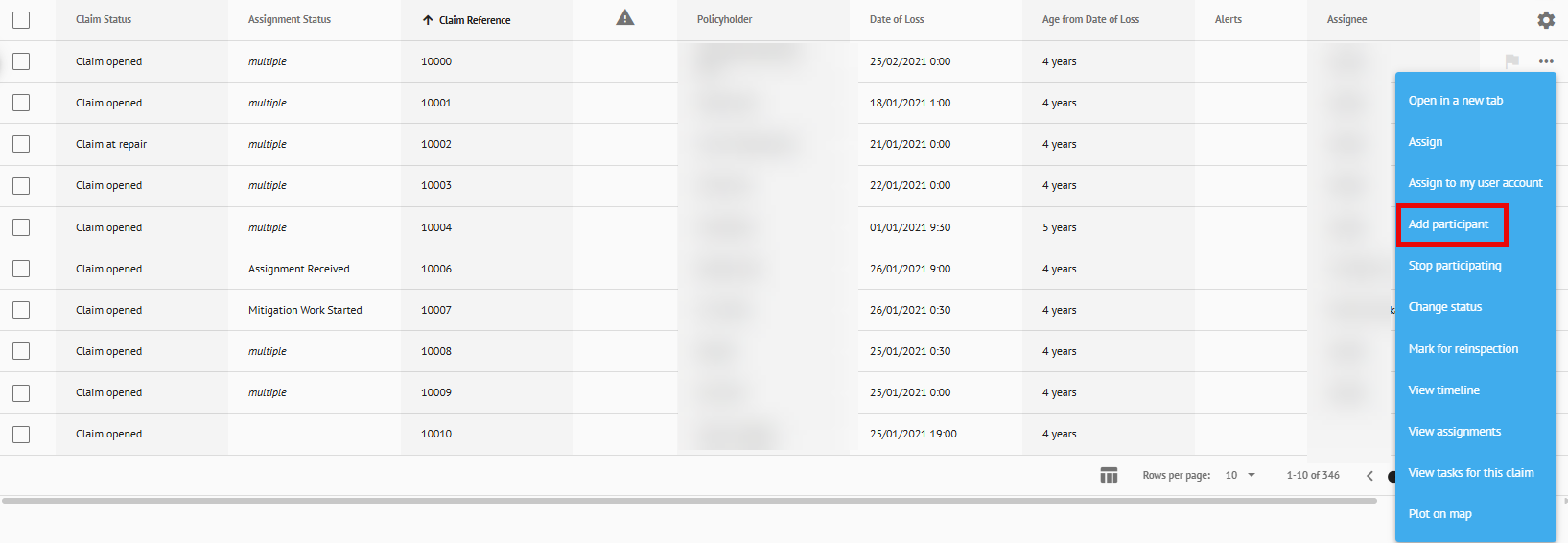
You will then need to click the three dots next to the claim and in the drop down that appears click Add Participant
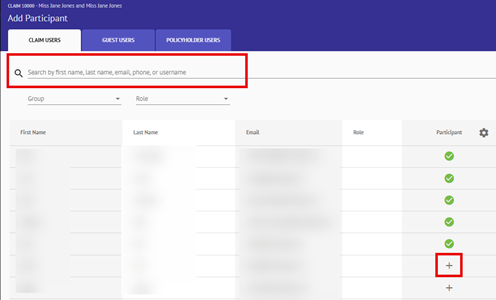
In the blade that appears you can search for the user you wish to add as a participant and select the + icon next to their name.
1.3 Adding Yourself as a Participant Within the Claim
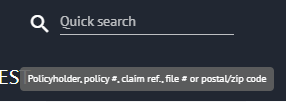
To add yourself as a participant within a claim you will first need to use the Quick Search bar to locate and open the claim you wish to participate in.
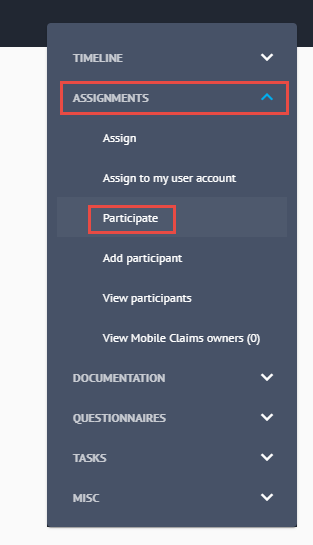
You can access the grey options box from any page within the claim, except of the ‘Assignments’ page. Under the Assignments header, select Participate.
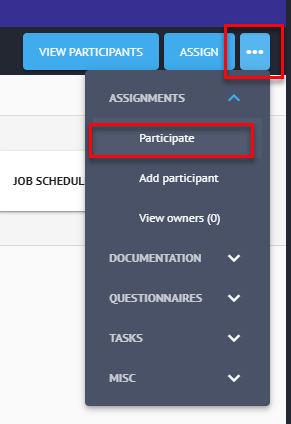
Within the Assignments page, click on the 3 dots in the top right corner and select Participate from the drop down.
1.4 Adding Another User as a Participant from Within the Claim
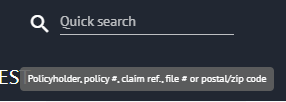
To add another user as a participant within a claim you will first need to use the Quick Search bar to locate and open the claim you wish to add them to.
You can access the grey options box from any page within the claim, except for the Assignments page. Under the Assignments header, select Add Participate.
Within the Assignments page, click on the 3 dots in the top right corner and select Add Participant from the drop down.
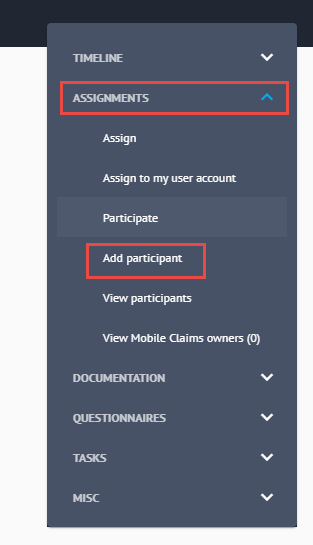
In the blade that appears you can search for the user you wish to add as a participant and select the + icon next to their name.
2. Stop Participating
If your participation in a claim is no longer required, you can select Stop Participating from both the claims list and within the claim itself.
When you stop participating the claim will be removed from your My Claims list in both Claims Workspace and Claims Estimate.
2.1 Stop Participating from the Claims List
To stop participating from the claims list you will need to open your My Claims
You will then need to click the three dots next to the claim and in the drop down that appears click Stop Participating.
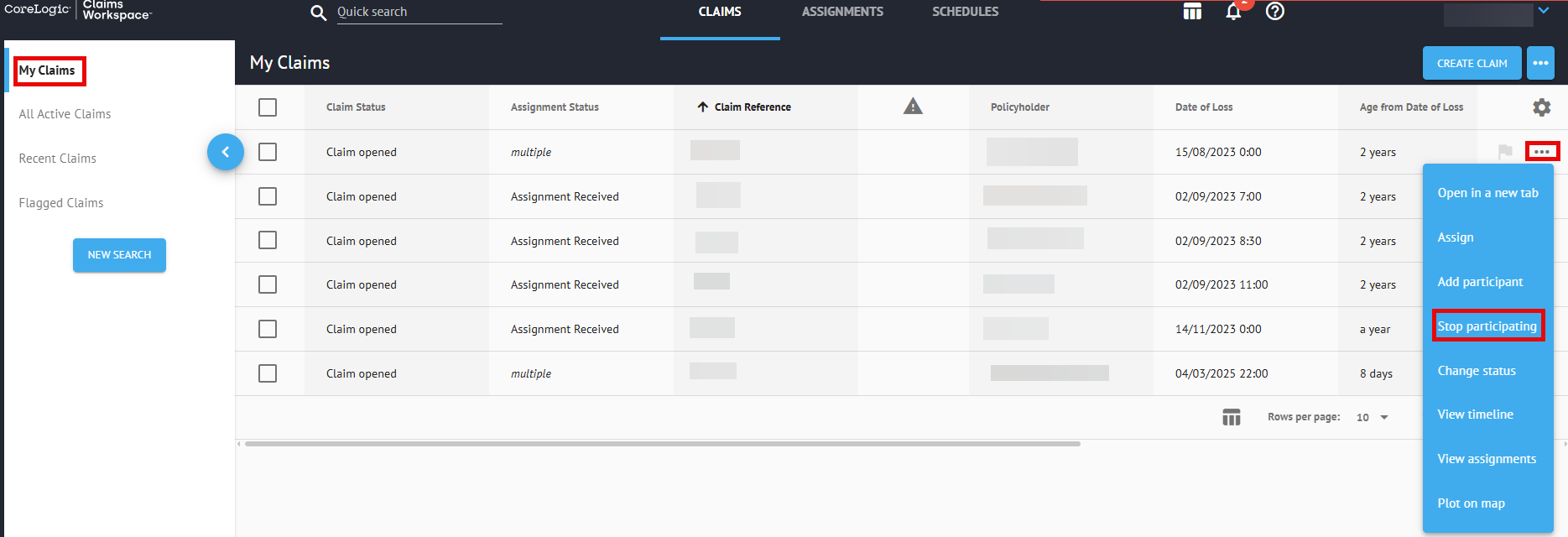
For multiple claims, tick the checkboxes next to the relevant claims and click the three dots in the top right-hand corner of your My Claims list. In the drop down that appears click Stop Participating.
2.2 Stop Participating from Within the Claim
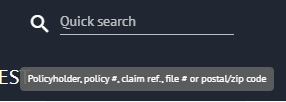
To stop participating from within a claim you will first need to use the Quick Search bar to locate and open the claim you wish to stop participating in.
From any page within the claim, you can access the grey options box. Under the Assignments header, select Stop Participating.
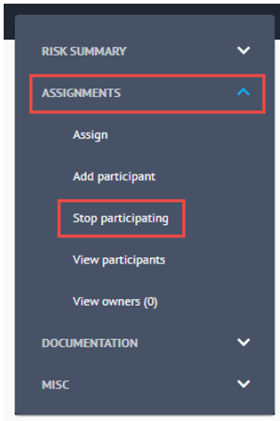
Please note that by stopping your participation you will no longer receive any notifications for this claim.

Was this article helpful?
That’s Great!
Thank you for your feedback
Sorry! We couldn't be helpful
Thank you for your feedback
Feedback sent
We appreciate your effort and will try to fix the article