
1. Adding a Floorplan
Estimate is a tool for scoping. When you are assigned to a claim you will either need to create your own floorplan or work on an existing one.
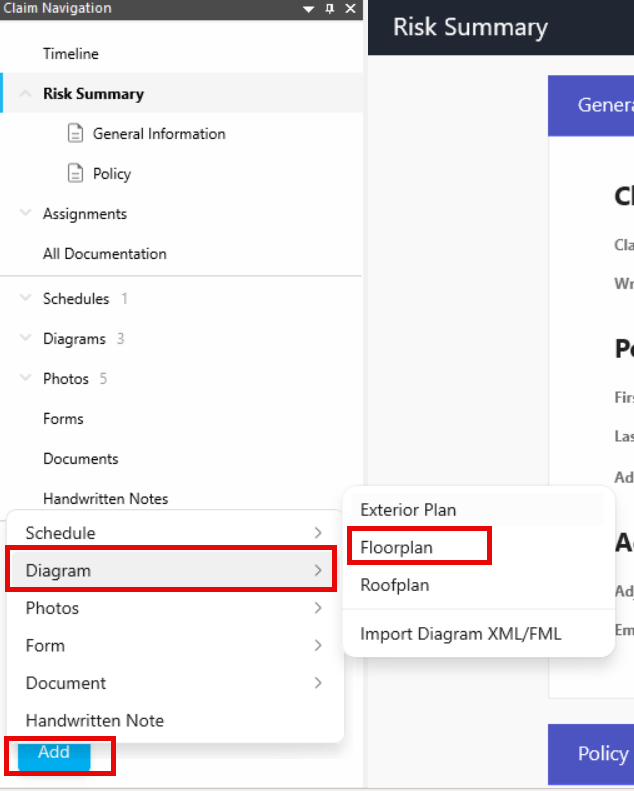
To create a floorplan, click the Add button in the bottom of the Claim Navigation followed by Diagram. In the drop-down list that appears you can choose to create an exterior plan, floorplan or roofplan.
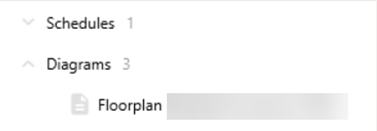
Once a floorplan has been created it will appear in your claim navigation under Diagrams.
2. Drawing the Floorplan
To draw a floorplan, begin by selecting a room shape from the top ribbon.
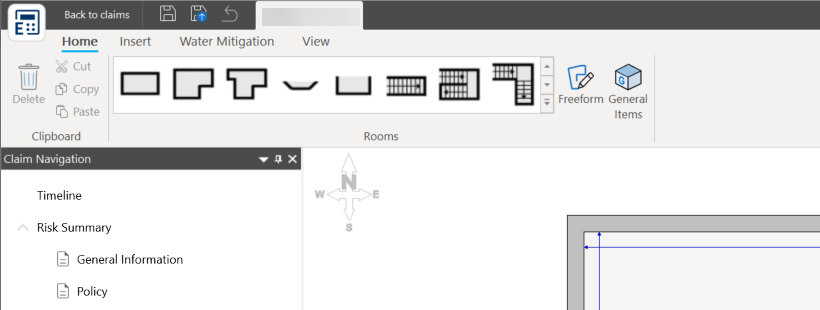
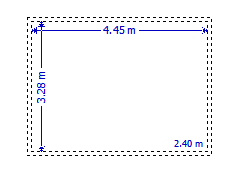
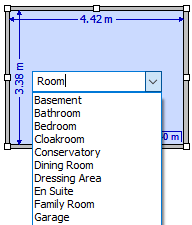
Once selected place your cursor on the canvas and click and drag to expand the room to the required size. You can then either choose a name for the room or enter one.
2.1 Superimpose
If you are creating an additional floorplan but the measurements/room(s) are of the same size, you can easily draw the same measurements by using the superimpose diagram option.
Open your new diagram and select the View tab from the top ribbon followed by the Superimpose Diagram feature.
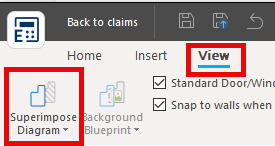
Once selected, a list of the claims existing diagrams will appear. Select the diagram you wish to copy, and you will be provided an outline of that diagram.
To remove the diagram, simply select the diagram from the drop-down list again.
2.2 Segment Mode
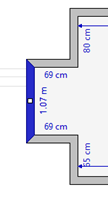
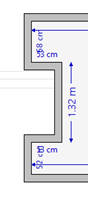
The Segment Mode feature allows you to create a section on a wall that can be moved in and out. This feature is useful for creating alcoves in a room, for example.
There are two ways in which you can enable this feature.
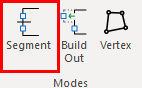
The first is to select the wall and click on the Segment Mode icon from the top ribbon.
The second is to right click on the wall and select Segment Mode from the option drop-down list that appears.
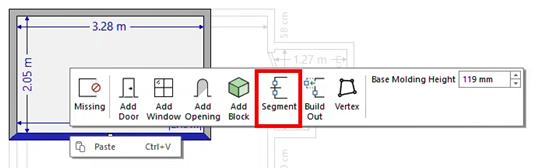
Once enabled, your cursor will change to a crosshair. You will then be able to select the required start and end point of your alcove.
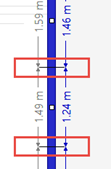
Using the square in the centre of your segment, drag the section inward or outward to its required size.
2.3 Build Out Mode
The Build Out feature allows you to quickly create an adjacent room on your floorplan.
Again, there are two ways in which you can enable this mode.
The first is to select the wall and click on the Build Out Mode icon from the top ribbon
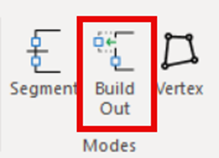
The second is to right click on the wall and select Build Out Mode from the option drop-down list that appears.
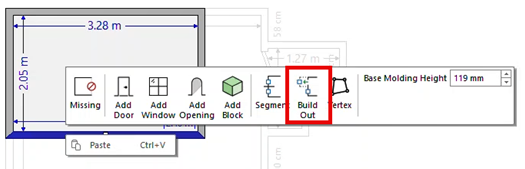
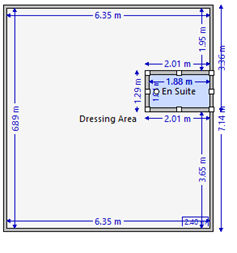
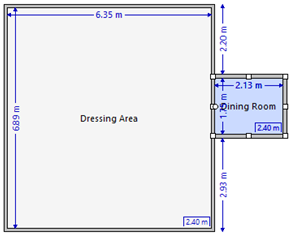
Once enabled, your cursor will change to a crosshair. Drag and drop your cross cursor within a room to create an interior room or out to create an adjacent room.
2.4 Vertex Mode
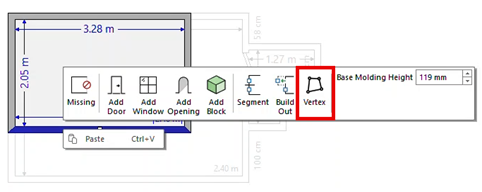
The Vertex Mode feature allows you to amend the angle of a room.
There are two ways in which you can enable this feature, the first is to select the room and click on the Vertex Mode icon from the top ribbon.
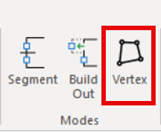
The second, is to right click on the room and select Vertex Mode from the option drop-down list that appears.
Once this feature is enabled, the angles of the room will be visible in red.
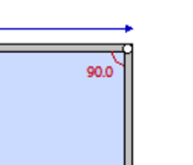
Click and drag the white dot in corner of your room to change the angle of the corner.
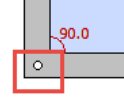
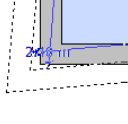
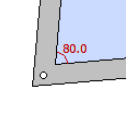
Alternatively, click on the red text and use the circular measurement tool to enter the desired angle.
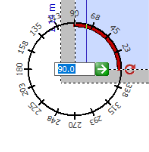
When you have finished using the Vertex Mode feature, click away from the diagram to deactivate it.
2.5 Freeform
The Freeform feature can be enabled by selecting the Freeform icon from the top ribbon on your diagram page.
This feature has 4 uses:
1. Drawing uniquely shaped rooms: Enable the feature and click once on your floorplan canvas to create the beginning of your wall. Click again elsewhere to create the end of the wall. Repeat this until you have reached the first dot and have created your room.
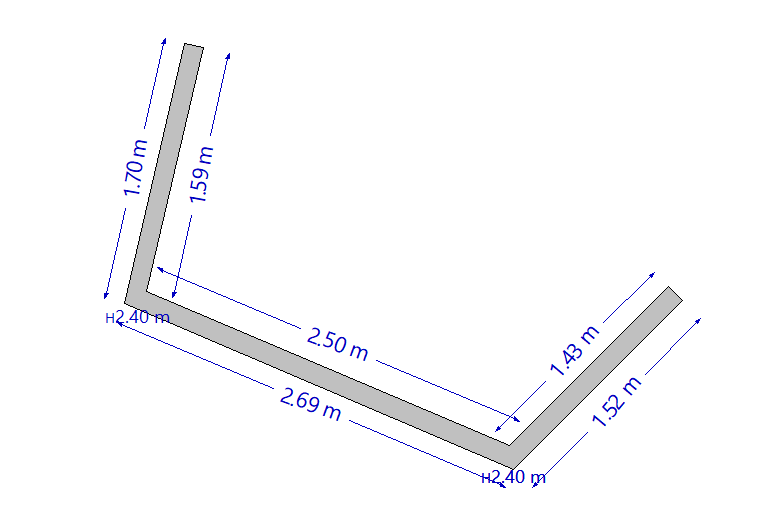
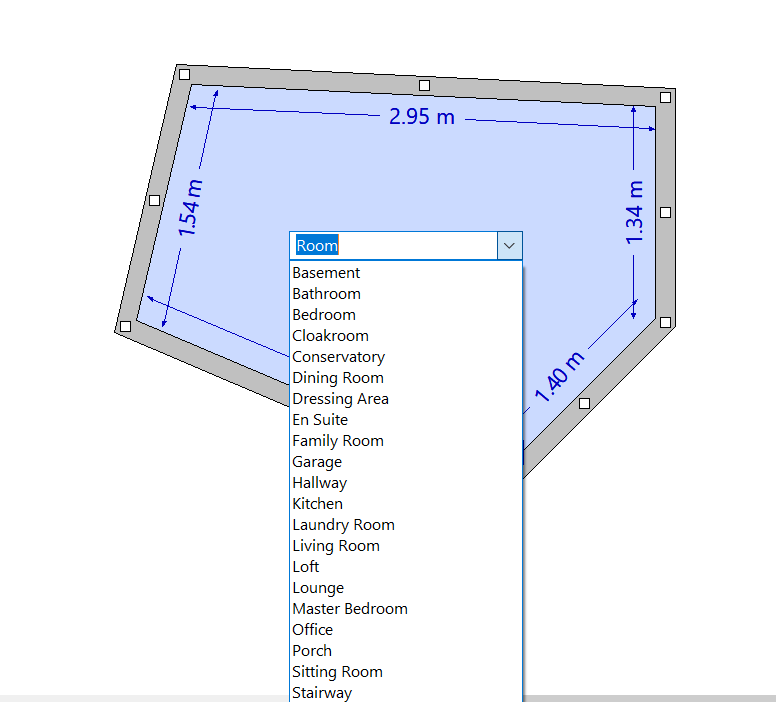
2. Drawing regular rooms/floorplans: Follow the steps above and repeat for multiple rooms
3. Creating rooms inside other rooms: To do this, enable the feature and click where you wish for your wall to begin. Continue creating your room and once complete, a drop-down will appear for you to name the room.
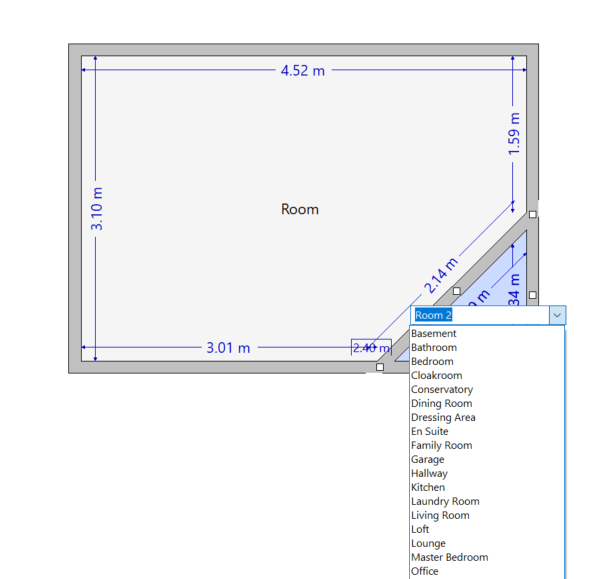
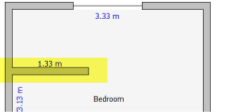
4. Drawing partitions: To do this, enable the feature and click on the wall where you want your partition wall to start. Click again where you want the partition wall to end and deselect the Freeform feature using the button in the top ribbon.
3. Adding Windows, Doors and Openings
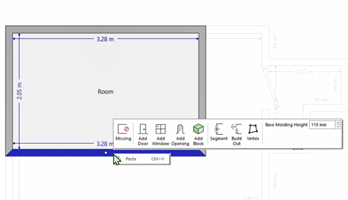
Right click on a wall to add windows, doors and openings.
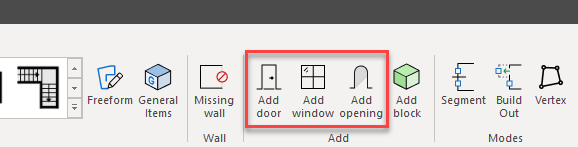
Alternatively, you can select the wall, then select a door, window or opening from the Wall Toolbar in the top ribbon.
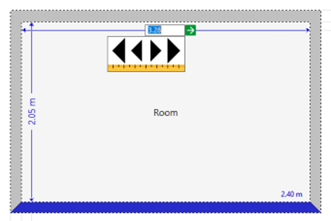
The dimensions of the room can be amended by clicking on the blue measurement inside the room and either typing the new measurement or using the arrow toggles.
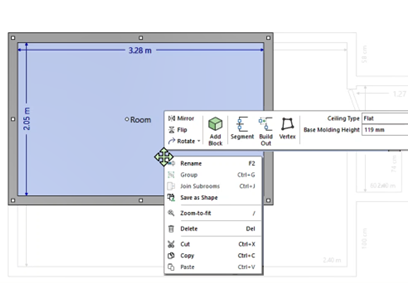
Additional features appear when right-clicking on the room such as zoom, flip, ceiling height and base moulding type, etc.

Was this article helpful?
That’s Great!
Thank you for your feedback
Sorry! We couldn't be helpful
Thank you for your feedback
Feedback sent
We appreciate your effort and will try to fix the article