
1.Resetting your own Password
If you are required to reset your password, you can either reset this yourself or any Admin user within your Company can reset the password for all user accounts.
Selecting Reset Password
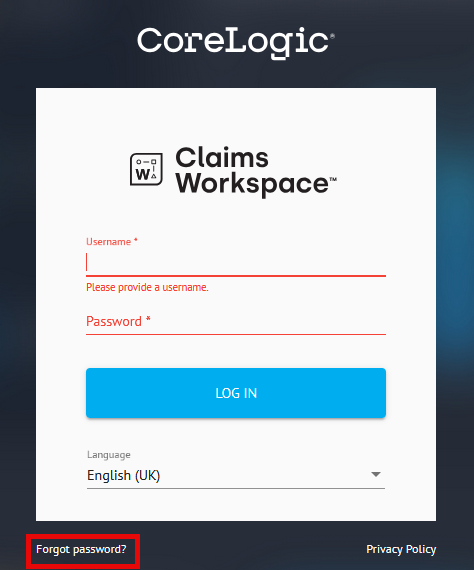
On the Claims Workspace login page, click on Forgot Password.
Enter your username and email address associated with your account and click Reset Password.
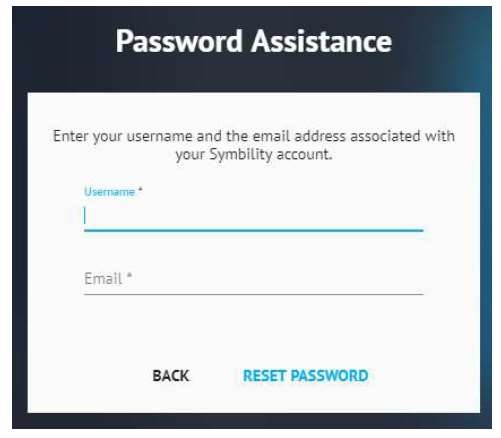
Please note that your username and email address is case sensitive. This means you will need to ensure that you are including all capital letters, special characters and spaces to match the username and email address linked to your account.
Receiving the Temporary Password
Once you have selected forgot password and inputted your credentials, a temporary password will be sent to the email address linked to your account.
You will need to use the temporary password contained in the email you have received to log into your account on Claims Workspace.
Please note that the temporary password will expire after 15 minutes for security reasons.
Creating a New Password
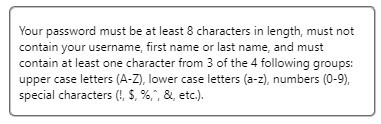
Once the temporary password has been entered, the system will prompt you to create a new password. This password will need to adhere to the following criteria:
2. Resetting Another User’s Password
If you are an Admin user, you can reset the password of other users.
To do this, click on the drop-down next to your name in Claims Workspace followed by User Accounts.
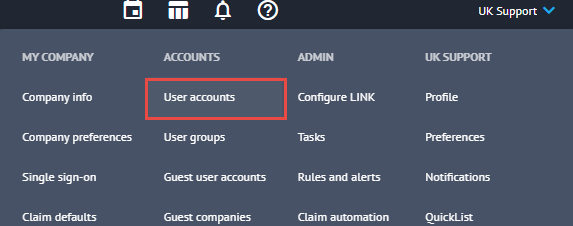
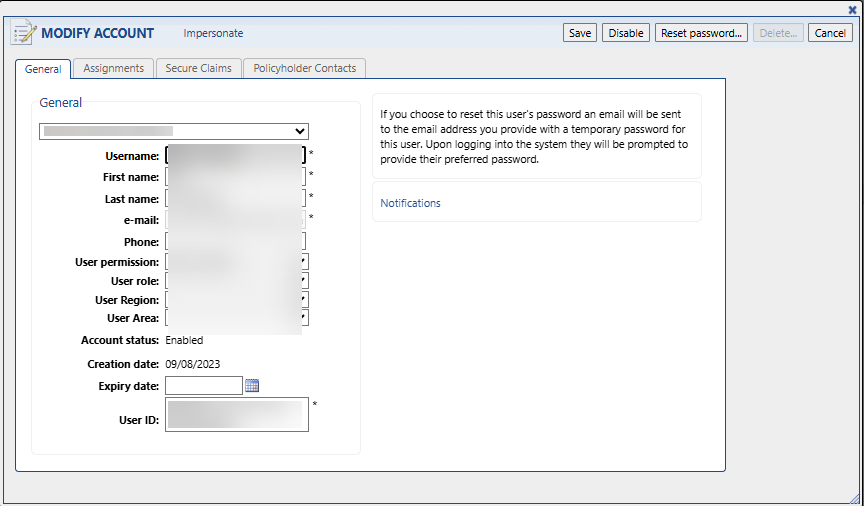
In the page that appears, select the user you wish to reset the password of. In the Modify Account window that appears, click Reset Password.

Was this article helpful?
That’s Great!
Thank you for your feedback
Sorry! We couldn't be helpful
Thank you for your feedback
Feedback sent
We appreciate your effort and will try to fix the article