
1. Clearing Cache and Cookies on Google Chrome
To clear your cache and cookies on Google Chrome, please follow the guidance below.
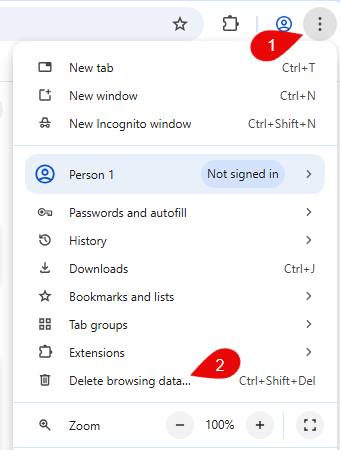
- Click on the 3 dots located in the top right-hand corner of your Google Chrome window.
- Click on Delete Browsing Data.
- On the window that opens, click on the Advanced tab.
- Ensure that Cashed Images and Files, and Cookies and Other Site Data are the only options selected.
- Select Delete Data.
- Close all instances of Google Chrome and reopen the browser.
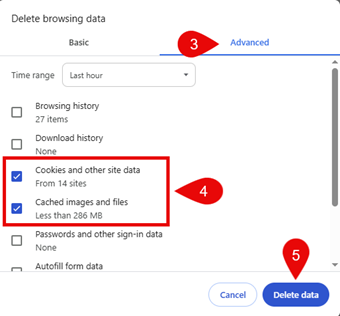
Please note If any additional options are selected from the Advanced tab they will also be removed once you select Delete Data.
2. Clearing Cache and Cookies on Microsoft Edge
To clear your cache and cookies on Microsoft Edge, please follow the guidance below.
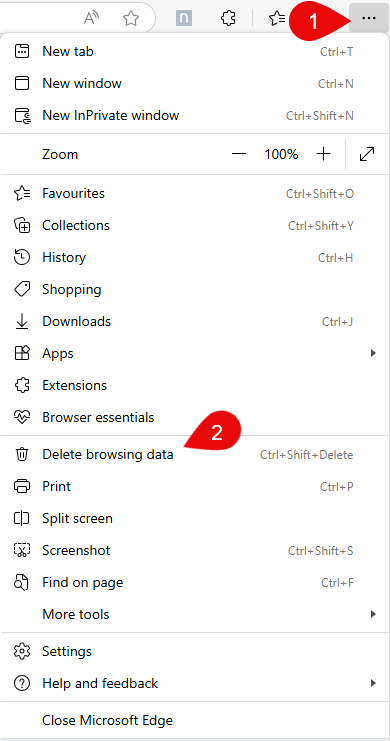
- Click on the 3 dots located in the top right-hand corner of your Microsoft Edge window.
- Click on Delete Browsing Data.
- On the window that opens, select All Time from the Time Range bar.
- Ensure that Cashed Images and Files, and Cookies and Other Site Data are the only options selected.
- Select Clear Now.
- Close all instances of Microsoft Edge and reopen the browser.
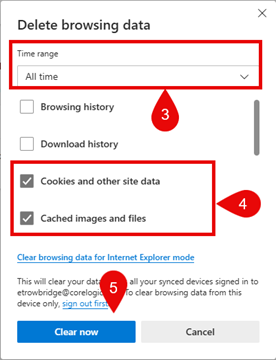
Please note If any additional options are selected from the Delete Browsing Data tab they will also be removed once you select Clear Now.
3. Clearing Cache and Cookies on Mozilla Firefox
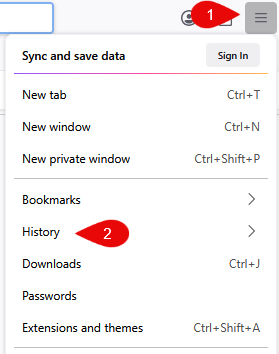
Click on the 3 lines located in the top right-hand corner of your Mozilla Firefox window.
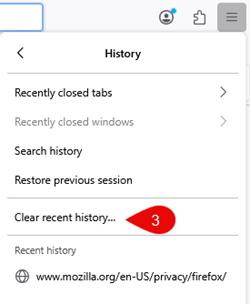
- Click on History.
- In the next list that appears, click Clear Recent History…
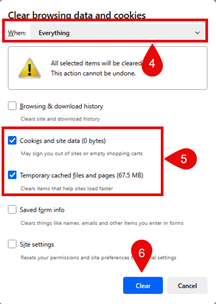
- In the window that opens, select Everything from the When bar.
- Ensure that Temporary cached files and pages and Cookies and Site Data are the only options selected.
- Select Clear.
- Close all instances of Microsoft Edge and reopen the browser.
Please note If any additional options are selected from the Clear Browsing Data and Cookies tab they will also be removed once you select Clear.

Was this article helpful?
That’s Great!
Thank you for your feedback
Sorry! We couldn't be helpful
Thank you for your feedback
Feedback sent
We appreciate your effort and will try to fix the article